

Modifying Multiple Select Lists with a Button
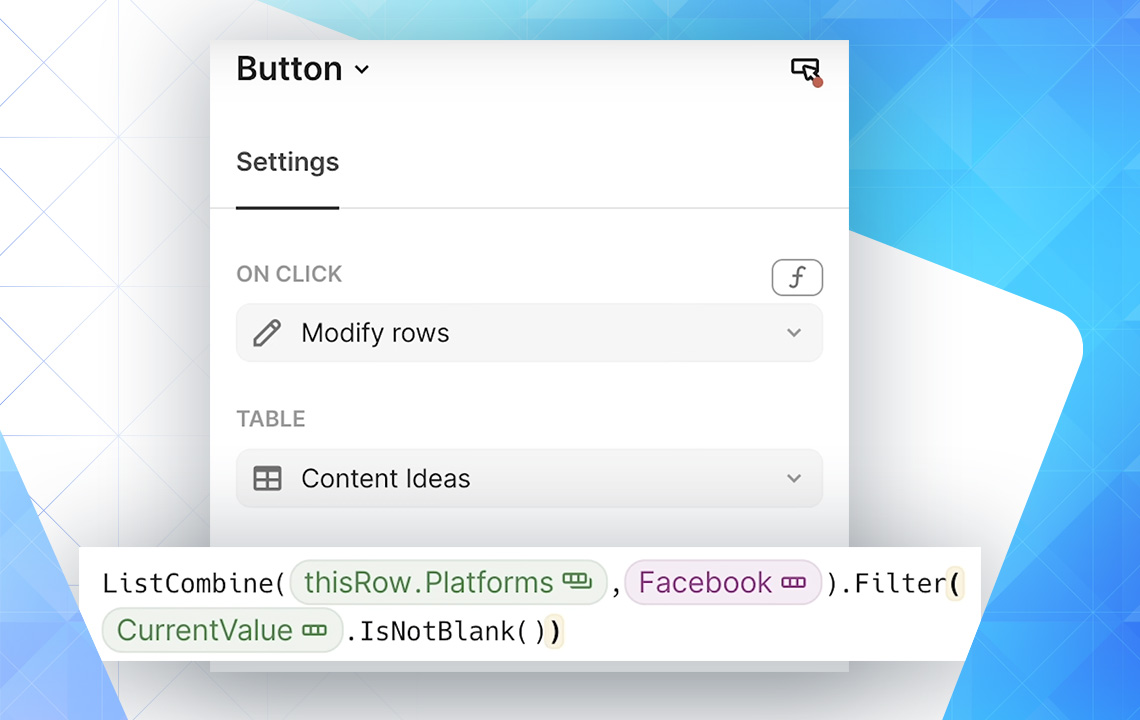
With all of Coda's power and flexibility comes responsibility to modify multiple select lists within tables efficiently. The formula used in table buttons is straightforward, but the reasoning behind it requires explanation.
Objective
The goal involves modifying column values by pressing a button. Adding predetermined values to multi-select lists presents specific challenges.
Three-Step Process
Step 1: Identify Appropriate Column
Find a Coda doc containing a table with a multiple select list column. The column type must be "Select list" or "Relation" with "Allow multiple selections" enabled in column options. List items appear as "chips" rather than plain text.
Step 2: Add Button Column
Add a button-type column to the table. In button column options, select "Modify rows" for the On click action, choose your table name for the Table dropdown, and select "This Row" for the Apply to dropdown.
Step 3: Update Values Formula
In the Update Values section, choose the column to modify. Enter the equals symbol followed by this formula:
ListCombine(thisRow.[ColumnName],[ListValueChipToAdd]).Filter([CurrentValue].IsNotBlank())
Common Mistakes Avoided
- Converting column values to plain text instead of maintaining chip format
- Using single list values that override existing column content
- Applying
ListCombine()withoutFilter(), creating literal "Blank" values
Want to read more?