

Send Gmail messages with attachments from Coda
Packs, Coda's word for integrations with other services, allow Coda to truly become the all-in-one doc. Bringing your teams work from all over the internet into one unified space.
The Gmail pack for Coda, one of the most popular packs, is lacking one major feature though:
The Gmail pack for Coda cannot send email messages containing attachments
While the Gmail pack may not be able to send emails with attachments, that does not mean that Coda cannot do it.
The guide below will demonstrate how to use Apps Script, a Google providing coding environment, to easily send emails with attachments using a button in Coda. Apps Script does require the use of a little bit of code, but I promise you can do it.
Yes you - Although you have never written a line of code before, you can do this.
Step 1: Create an Apps Script project
The first step is setting up a new Apps-Script. You can do this by:
- Going to script.google.com
- Typing script.new into your browser
Once you have navigated to Google Apps-Script you are going need to start a new project.
Step 2: Set up your Apps Script
Now its time to actually get our code in our project, and set it up so its ready to connect to your Coda doc.
Copy/Paste Code
Copy and paste the provided code into your Apps Script project. The code contains three functions: replaceSpace, sendPdfEmail, and doPost.
Get ready to connect to Coda
You will have to do three quick things:
- Save the project
- Run the project to authorize it
- Deploy the project as an application
Next, you will need to RUN the project in order to authorize it. Authorizing it is similar to inputting a username and password - you are telling the Apps Script that it is ok to send emails on your behalf.
Once you press Run you will be walked through the normal flow of signing in/logging in with your gmail account.
In order to deploy your script as a web app, follow these steps:
- Press the big blue DEPLOY button in the top right corner of your screen
- Choose "New Deployment"
- Select the "Web App" deployment type using the small cog wheel in the top left of the pop-up window
- Change the "Who has access" to be "Anyone"
- Press Deploy!
- Once deployed, it will give you both a deployment ID and a URL. You want to copy the URL specifically and save it for the next step
Step 3: Set up Coda to send emails!
You did it! You now have a script running that will accept inputs from a Coda doc and send Gmail messages with attachments. Now we just have to connect our Coda doc to your apps script and set up the actual button that will do all the magic.
You've only got a couple steps left and then you are done:
- Install the Apps Script pack into the Coda doc you want to send messages from
- Configure the button to send messages
- Send your first email!
Install the Apps Script Pack
There is a free pack in the Coda gallery called "Apps Script" - and you can install it in any Coda doc by doing the following:
Inside a Coda doc:
- Insert > Packs > Search "Apps Script" > Add to doc for free
The Apps Script pack is going to have a button that allows us to trigger or send information from a Coda doc directly to your apps-script project you created in the previous step.
Configure a button to send your email
Sending emails from a button is best done from a table. If you need to learn more about sending emails from Coda in general, check out the resource that runs you through best practices.
Likely, if you have a table to send emails it will look like the following with common column types of name, email, subject, attachment, name of attachment, etc. But honestly, you can set up the table however your workflow demands.
Once you have your table, create a new button column, and choose a pack action, and choose the Apps Script pack and then choose the "Trigger web app" action.
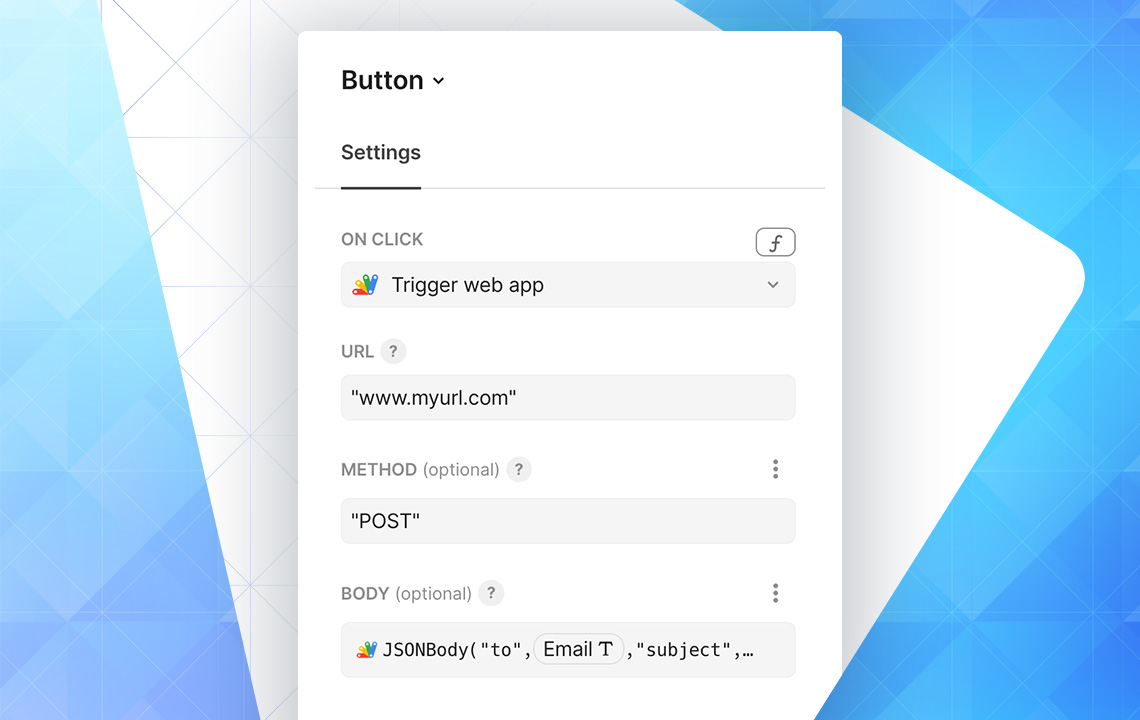
Once you have your button in your table its time to configure, or set it up. You will need to input the following things into your button:
- The Web App URL you copied from Step 2 of this guide
- Method: Type the word "POST" into this box
- Body: This is going to be a formula input - use the JsonBody() formula from the Apps Script pack.
For the Body part of the button, this is where you will define what information from your Coda doc gets sent out to the apps-script, and then eventually in the email.
The parts that need to be exact are the words:
- to
- subject
- body
- url
- pdfName
And then the value or the argument directly after the "url" portion needs to be the Attachment.First()._merge().ParseJSON("publicUrl") formula. All the other green chips will be unique to your document or table.
And thats it! Now you can start sending emails with attachments from any Coda doc.
A little more about this workflow
This workflow is just one way that Coda docs can be extended using Apps Script. SimplaDocs has built dozens of Apps scripts for clients that connect to their Coda docs in a myriad of ways automating all sorts of business processes.
While apps script can be used for any sort of automations, it is especially helpful for automations or integrations with Google based services.
Don't hesitate to contact us if you need any help!
Want to read more?