

Master Coda's Filter Formula
What does Filter even mean?
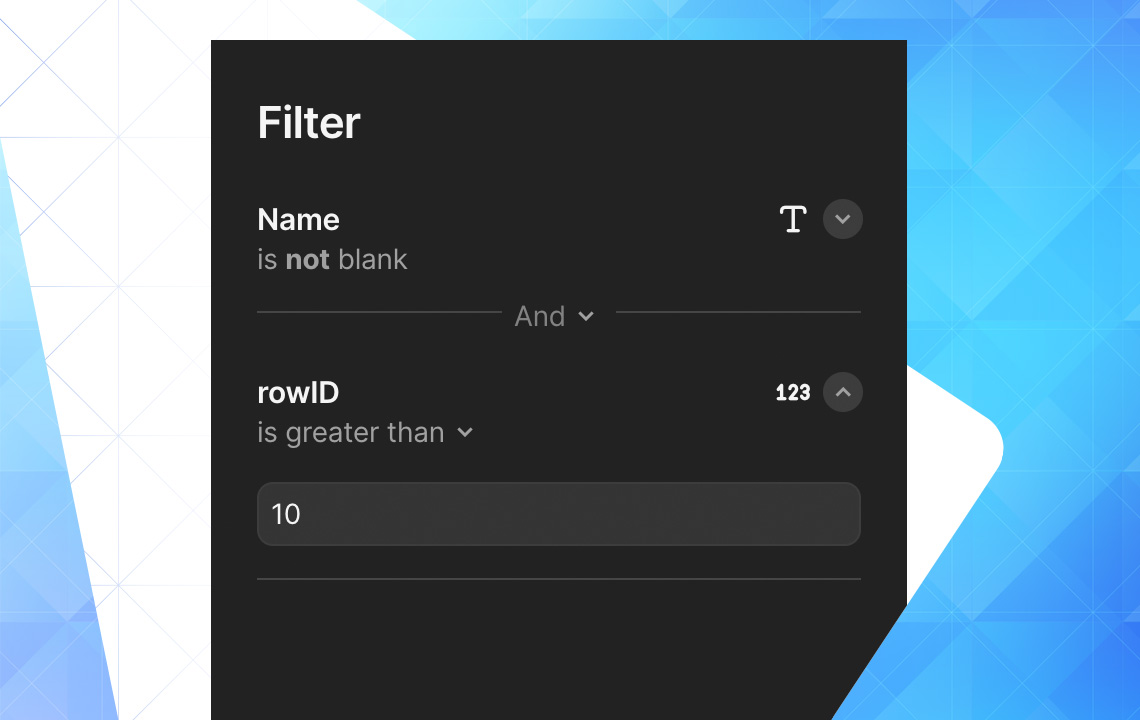
Filtering a table or view is comparable to "looking at a restaurant menu and deciding you actually only want dessert so you flip to the back and focus on those items." In Coda, users request: "take this table and only show me the items that match a certain set of criteria."
The example table contains information about people's ages and heights.
Anyone can filter using the Filter Bar
Coda offers a user-friendly filtering option. Users can click "Options" > "Filter" when hovering over a table. Toggling "Enable filter bar" allows anyone to filter without changing others' views. Users can select which columns are filterable.
You choose the filter for someone else
Users can create pre-filtered views for specific audiences. This prevents the need for constant manual filtering when recipients only need particular information subsets.
Coda's Filter() formula
The Filter() formula enables advanced functionality including table connections, dashboard creation, and data insights. It comprises three main parts:
- The table to filter
- Criteria defining which rows to return
- The desired column (optional)
Basic Example
A simple formula filters the People table: "filter for anyone whose name is 'John.'"
Intermediate Example
A more complex formula states: "look into my Expenses table and find only rows where the month matches this row's month and the year was 2022. Then return the average of those amounts."
More Resources
Users seeking mastery should explore The Coda School, which teaches data-types, Boolean operators, and list principles in depth.
Want to read more?